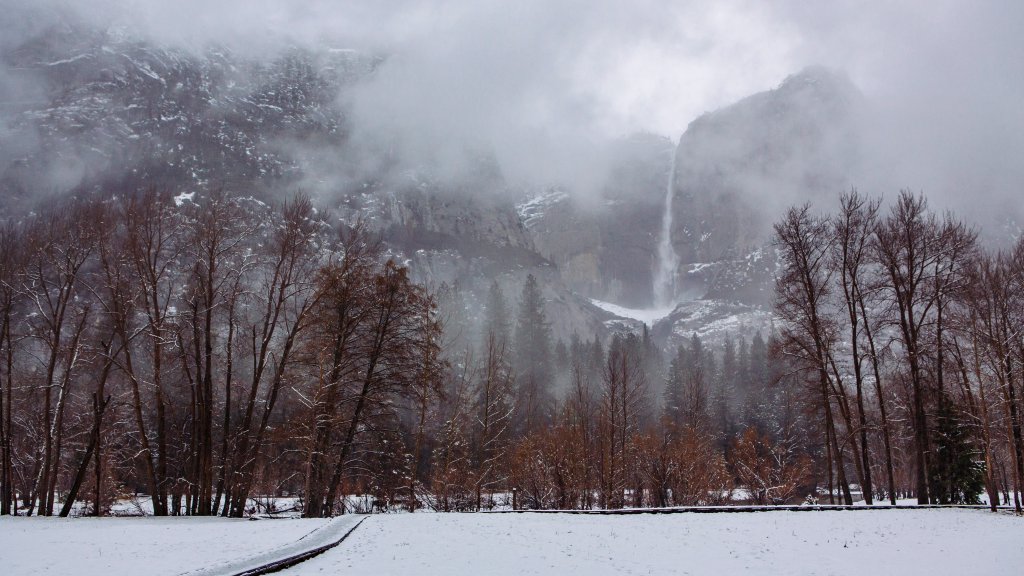
Yosemite Falls in Winter, Yosemite National Park
Sign in to add this photo to your favorites and desktop wallpaper rotation.
Yosemite Falls is one of the most iconic and tallest waterfalls in North America, located in Yosemite National Park in California. The waterfall is a major attraction within the park, drawing visitors from around the world to witness its stunning beauty and power. Yosemite Falls consists of three sections: the Upper Yosemite Fall, the Middle Cascades, and the Lower Yosemite Fall. The total drop is approximately 2,425 feet (739 meters), making it one of the highest waterfalls in the world. The Upper Yosemite Fall alone has a drop of 1,430 feet (436 meters), while the Middle Cascades account for about 675 feet (206 meters), and the Lower Yosemite Fall drops 320 feet (98 meters). The best time to view Yosemite Falls is during the spring, typically from April to June, when the snowmelt from the Sierra Nevada mountains is at its peak, providing a robust flow of water. By late summer, the flow may diminish significantly, and in some years, the falls can dry up completely. Visitors can enjoy various viewpoints and hiking trails to experience the falls. The Yosemite Falls Trail is a popular hike that offers breathtaking views of the falls and the surrounding valley. The trail to the top of the Upper Yosemite Fall is challenging and steep, but it rewards hikers with panoramic vistas. Yosemite Falls is not only a natural wonder but also a symbol of the grandeur and beauty of Yosemite National Park. Its majestic presence and the surrounding scenery make it a must-see destination for nature lovers and outdoor enthusiasts.